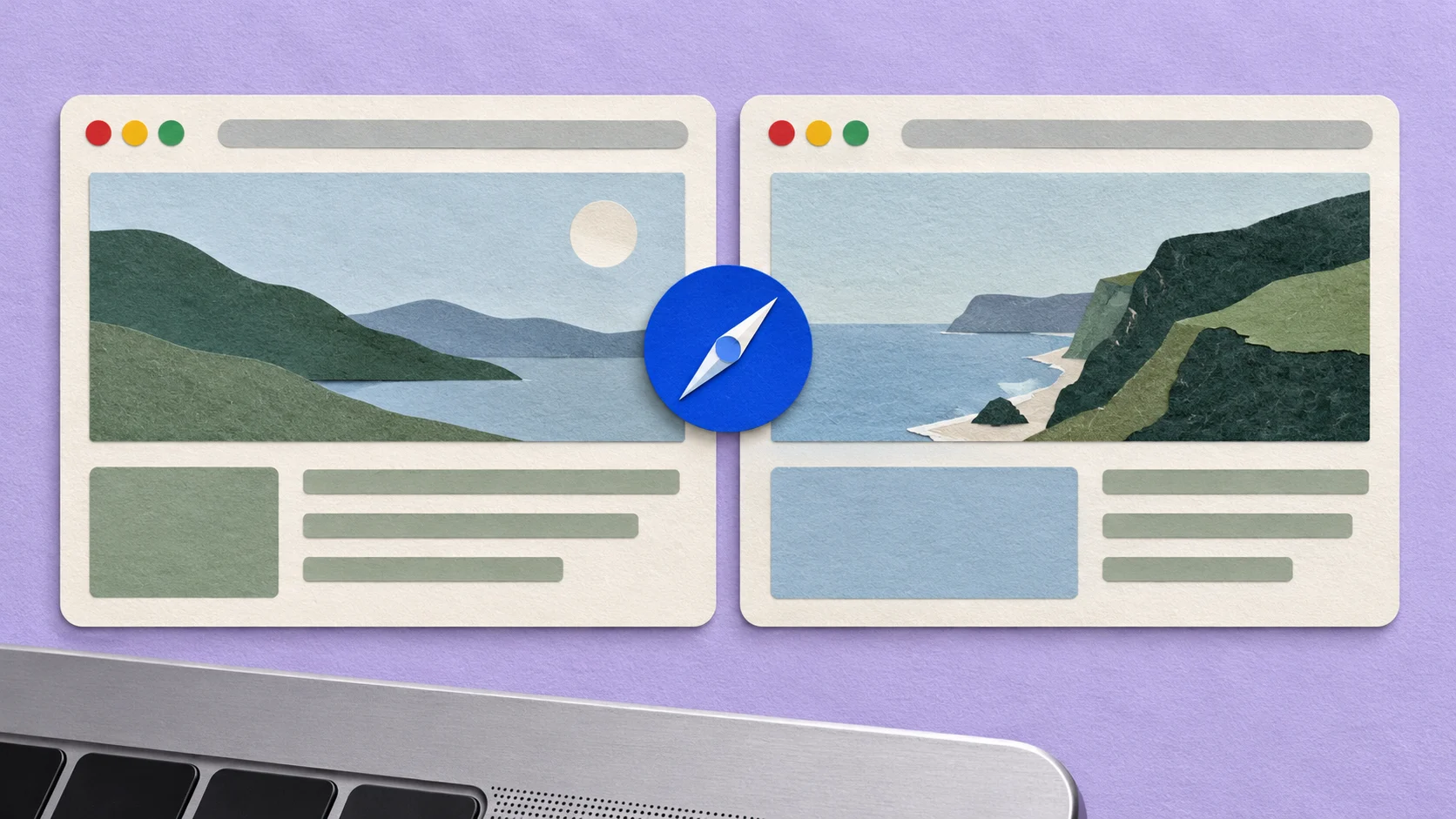
How to view two Safari pages side by side on Mac
Separate an existing Safari tab, compare both pages on your desktop or in Split View, then move the tab back. No extra app required.
Read the guide →Glidro · Blog
Practical guides to scrolling windows, keyboard workflows, multiple displays and a desktop that stays easy to navigate.
All guides
Check cost, app minimum sizes, Spaces and window-navigation habits before replacing Magnet with another snapper or a scrolling manager.
Read the guide →
Set up a horizontal window strip around real tasks, choose readable widths, and keep useful windows nearby without squeezing everything onto one screen.
Read the guide →
Learn a small set of Mac window actions, separate apps from windows, avoid shortcut conflicts, and build a repeatable keyboard routine in Glidro.
Read the guide →
Compare Mac split screen, snapping, automatic tiling, and scrolling layouts using real work scenarios rather than a feature-count contest.
Read the guide →
Give each display a clear role, move the right window rather than duplicating it, and plan a usable fallback when your MacBook is undocked.
Read the guide →
Organize Mac Spaces around projects without creating a desktop maze. Keep window layouts, app switching, full screen, and Glidro controls understandable.
Read the guide →
A focused troubleshooting sequence for Mac window manager permissions, app identity, running state, shortcut conflicts, and windows that resist resizing.
Read the guide →
Build a practical editor, terminal, documentation, and preview workflow. Keep readable widths and project context without turning every tool into a permanent tile.
Read the guide →
Organize browser sources, PDFs, notes, and a working draft into a clear research loop. Separate evidence from interpretation and avoid a desktop full of duplicate windows.
Read the guide →
Distinguish page scrolling, window navigation, and Space switching. Diagnose Glidro trackpad conflicts without disabling every familiar Mac gesture.
Read the guide →
A practical first-session checklist for Glidro: permissions, running state, readable widths, shortcuts, floating exceptions, and a safe pause route.
Read the guide →Windows side by side on an endless strip. Try Glidro in your browser.