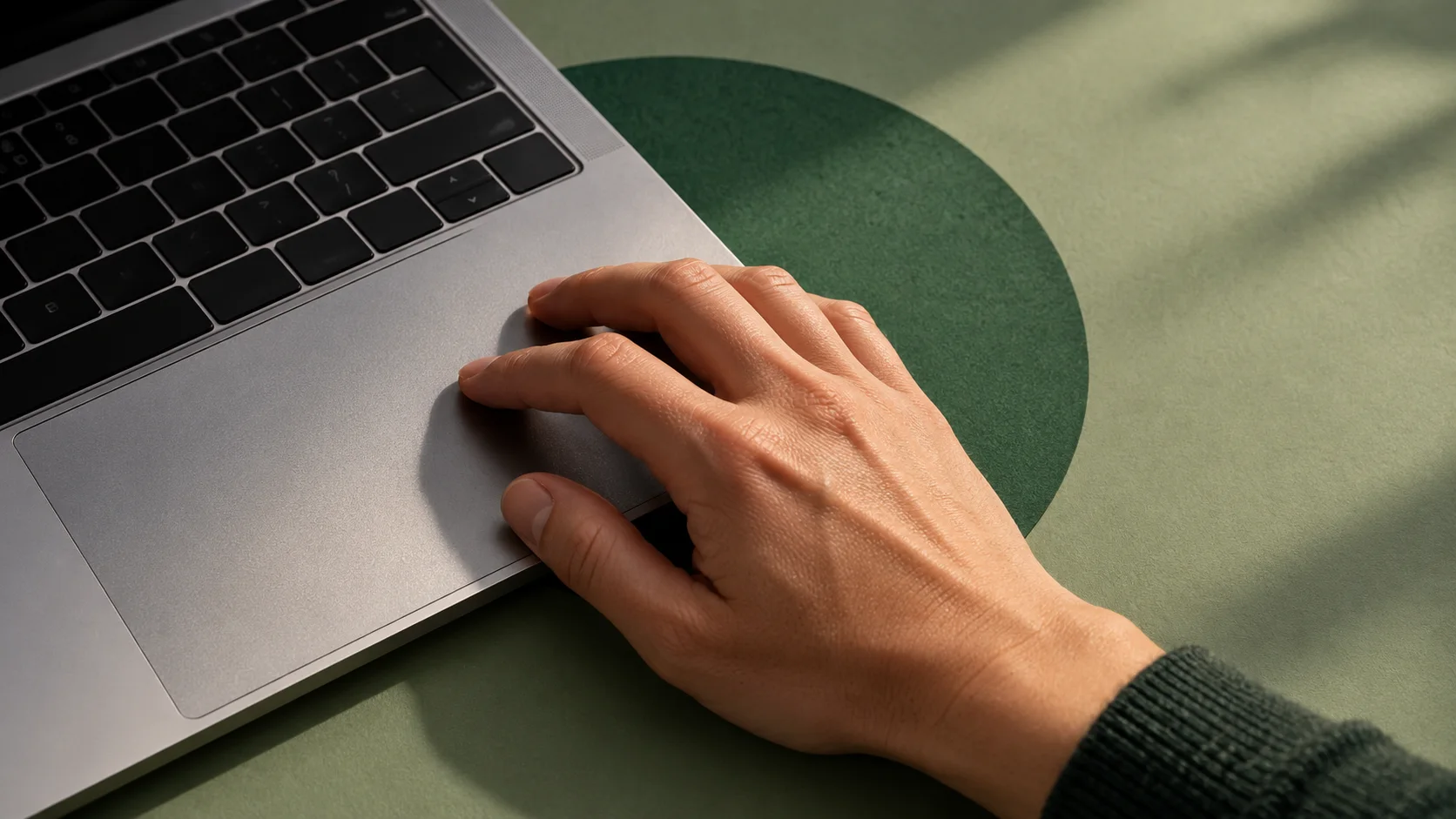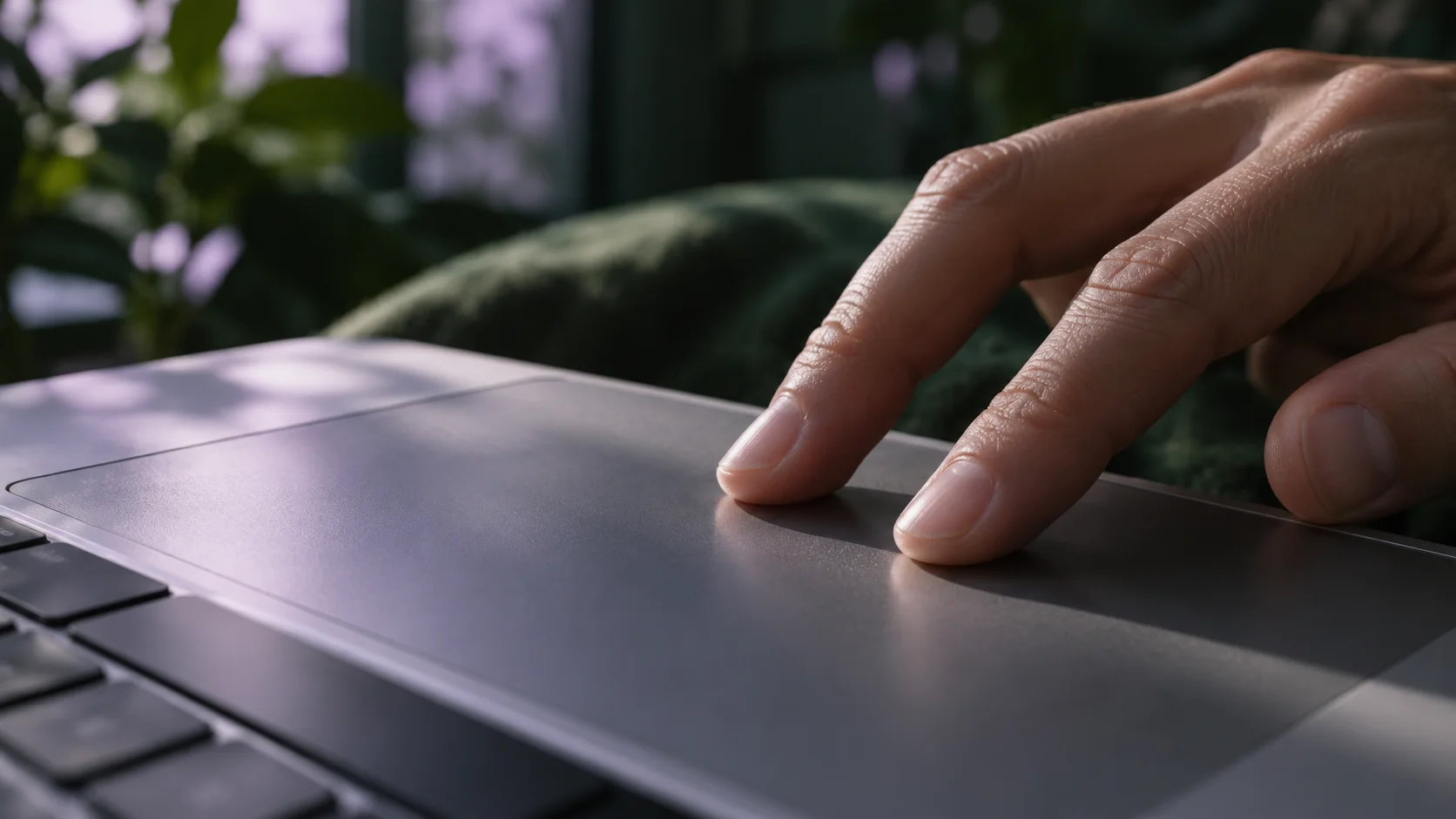
A horizontal swipe can mean several things: move through a web page’s history, change a macOS desktop, or navigate windows in a strip. When more than one tool is listening, a gesture can feel unreliable even though each individual setting looks reasonable.
Start by naming the action you intended. “The swipe is wrong” is hard to diagnose. “I wanted the next window but changed Spaces” immediately tells you which two layers need inspection.
Quick answer
Identify which layer should respond, inspect the corresponding Trackpad and Glidro controls, and change one conflicting assignment. Test the same gesture on ordinary windows before adjusting sensitivity or adding more bindings.
Separate content, windows, and desktops
Content navigation happens inside the active app: scrolling a document, panning a canvas, or moving through a browser’s history. Window navigation selects a different working window. Space navigation changes the desktop context. These actions may all involve horizontal movement, but they should not be interchangeable in your mental model.
Write down what actually happened after the gesture. Did the document move? Did the focused app change? Did the whole desktop switch? Repeat with two recognizable windows so you can see the distinction without guessing from a busy screen.
Do not begin by raising sensitivity. If the wrong layer owns the gesture, making that gesture easier to trigger will not solve the ownership problem.
Review the gestures your Mac currently uses
Apple’s Multi-Touch guide describes the system gestures and notes that some use different finger counts depending on macOS version. Open System Settings → Trackpad to inspect the assignments available on your own Mac. The examples and previews there are more useful than assuming every Mac matches a screenshot from a guide.
Check Space switching, Mission Control, and any other gesture that resembles the action you want for your window manager. If you use an accessibility gesture such as three-finger dragging, account for it before choosing an overlapping window command.
Change one assignment at a time. Keep a note of its previous state so you can restore it if the change does not help. A deliberate conflict fix should not require relearning every familiar trackpad action.
Check Glidro’s window and workspace controls separately
Glidro exposes optional three- or four-finger gestures and controls for gesture behavior. Consult Controls in your installed version for the exact options. Window navigation and workspace navigation should be evaluated as distinct commands, even when both use a swipe.
Choose one gesture to learn first. Practice it with a small strip while leaving workspace navigation on a familiar alternative. Once the window action is dependable, decide whether a second gesture would improve anything. Two new actions with similar motions are harder to diagnose together.
Keep keyboard focus commands available during the test. They give you another way to reach the intended window and help distinguish an input recognition problem from a layout or permission problem.
Test recognition before tuning the feel
Place your fingers clearly, make one deliberate gesture, and let the transition finish before repeating. Test in the same context several times. Then try a second app, a different window, and a transition near the end of the strip. Note which condition changes the result.
If the wrong action occurs consistently, inspect assignments. If the intended action occurs but triggers too easily or requires an awkward motion, then tune the available sensitivity or distance settings. Adjust one control and repeat the same test so you know what changed.
If no input method can move focus, return to running-state and Accessibility checks. Gesture tuning cannot repair a paused engine or missing authorization. Our permission troubleshooting guide covers that branch.
Keep a comfortable alternative and document the result
A useful setup should work when your hands are on the keyboard and when they are on the trackpad. You do not need to use both equally, but an alternative reduces frustration when a gesture is inconvenient for the current task. A precise text selection and a window change are different movements.
For support, record the intended command, finger count, direction, active app, display, and whether the Mac changed Spaces or moved content instead. Include Glidro and macOS details available through Help. A short reproduction with two windows is easier to reason about than a video of an entire busy work session.
If the native gesture is more valuable to you, keep it and use a keyboard binding for the window command. The goal is comfortable control of your work, not maximum use of every available gesture option.
Common questions
Should I disable all macOS gestures?
No. Identify the overlapping action and change only what is necessary. Keep the system gestures you use and assign a distinct route for window navigation.
Why does a swipe work differently across apps?
The active app may interpret content gestures, while system and window-manager gestures operate at other layers. Test the same action with a simple window set and inspect ownership before tuning sensitivity.