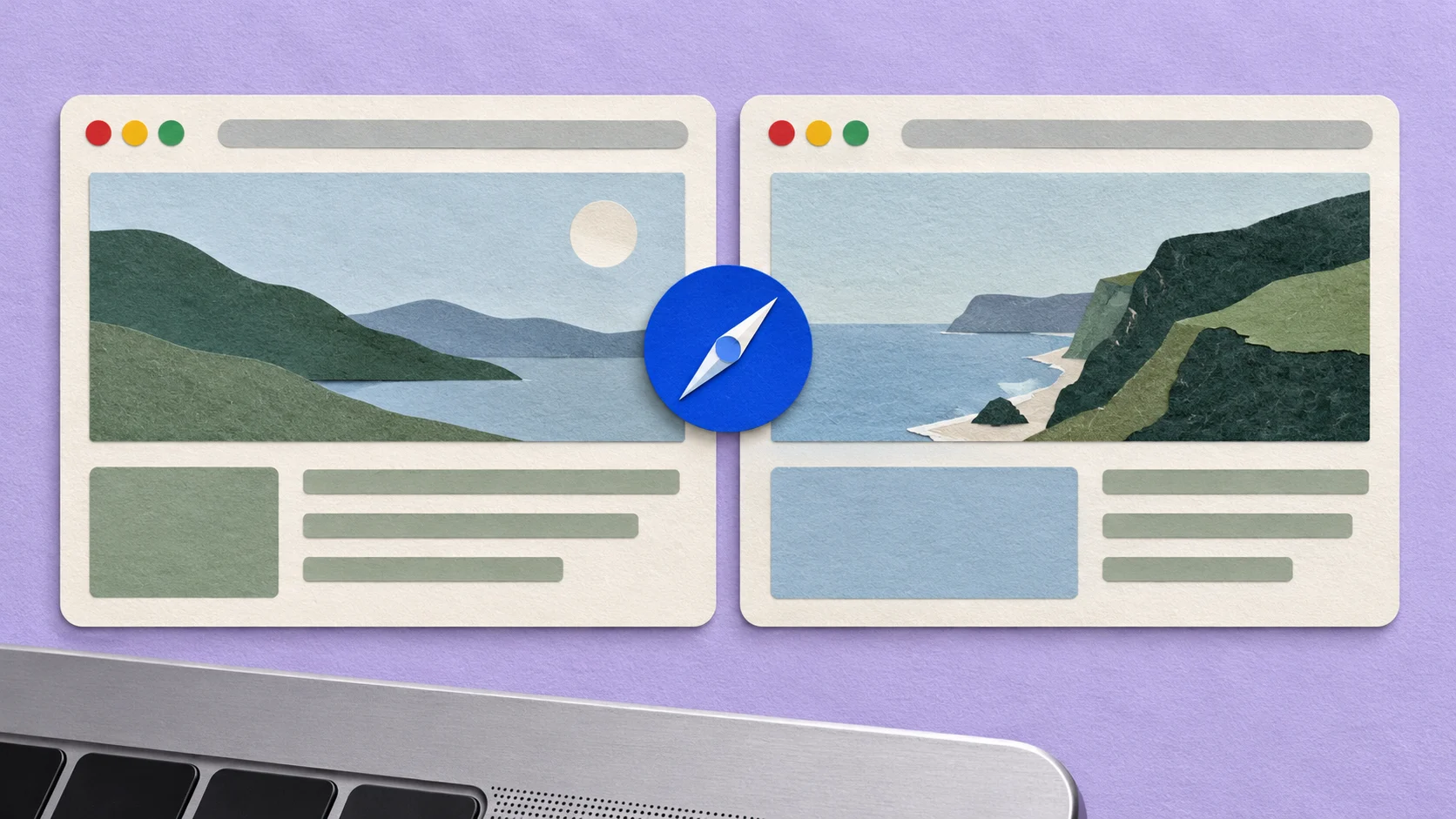
Two pages are open in Safari, and you want to compare them without clicking back and forth. Move one tab into its own window, then place the two windows beside each other. You can do the whole task with Safari and macOS.
The useful first step is choosing the tab you want to separate. A window manager arranges windows; it does not turn the other tabs in a Safari window into visible pages.
Start with the two tabs you already have
Select the second page in Safari, then choose Window → Move Tab to New Window. The first page stays in the original window with its other tabs. The selected page now has a window of its own. Apple also documents dragging a tab onto the desktop as an alternative. Safari’s tab guide.
For example, suppose you are comparing the installation instructions for two apps. Leave one guide in the original window and separate the other. Keep unrelated tabs where they are; there is no need to unpack the entire browsing session.
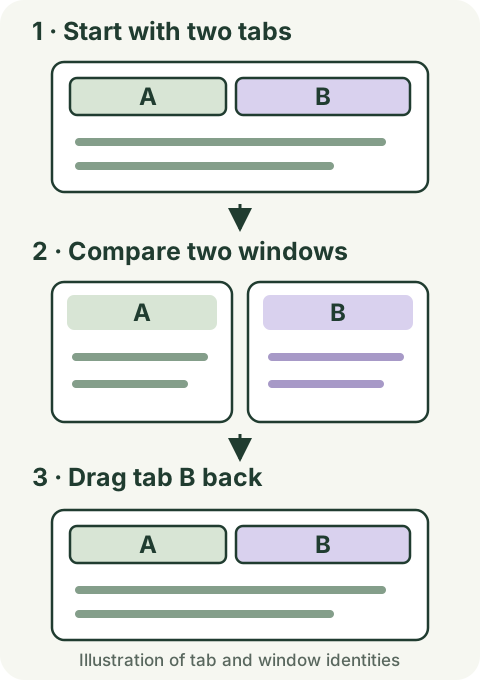
Process diagram, not a Safari screenshot. Safari separates and reunites the tabs; macOS arranges the windows.
Now choose where you want to work: on the ordinary desktop, or in a full-screen pair.
Keep both pages on the desktop
On macOS Sequoia 15 or later, use desktop tiling:
- Hold the pointer over the green button in the first window’s upper-left corner.
- Under Move & Resize, choose the left-half layout.
- Do the same in the second Safari window, choosing the right half.
Dragging each window to its corresponding screen edge is another option. Release when the placement preview appears. These are macOS window controls, so the two pages remain separate windows on your desktop. Apple’s Sequoia tiling instructions.
Choose this arrangement when you expect to bring a notes document or another ordinary window into the task.
If fixed halves feel cramped, replace that arrangement with manually sized windows: drag a window's side edge to change its width, then position the other window beside it. These desktop windows do not share Split View's central divider. You can also compare one section at a time in a larger window. Apple's window-resizing guidance.
Use a full-screen pair instead
For a dedicated two-page comparison, macOS Split View is another route. On Sequoia 15 and Tahoe 26, hover over the green button, open Full Screen, choose Left of Screen or Right of Screen, then select the other Safari window for the remaining side. The pair occupies its own desktop Space. Apple’s Split View guide.
On Sonoma 14, the menu instead uses Tile Window to Left of Screen and Tile Window to Right of Screen for this full-screen arrangement. Use Apple’s version selector if your menu differs. Sonoma instructions.
Drag the central divider when one page needs more width. Desktop tiling is the more direct choice when you want other windows nearby.
Put the separated tab back
When you finish, drag the detached tab into the original Safari window’s tab bar. Closing its window would close that page instead of moving it back. Apple documents moving tabs between window tab bars; tabs from private and ordinary browsing windows cannot be mixed. Safari tab movement.
If you used full-screen Split View, first return the windows to the desktop. In the current Split View menu, Move Window to Desktop returns the selected side. The other side remains full screen, so return to it through Mission Control and move it back too. Then reunite the tabs. Split View exit behavior.
Leaving one side of the pair keeps the other window full screen.
When a third window changes the task
Two pages alone are well served by the native methods above. The choice becomes different when you add a draft, notes and further references, and no longer want everything squeezed into the visible screen.
Glidro arranges ordinary windows in a horizontal strip that you navigate through. Its scrolling model is worth considering when preserving a comfortable reading width matters more than seeing every window at once. Full-screen windows remain under macOS control. Glidro’s layout model, setup guidance.
For a broader source-and-notes task, see our Mac research workflow. If the two-window method already solves your comparison, you can keep that arrangement.
Questions that come up
Do I need an extension or a paid app?
The two-window method described here uses built-in Safari and macOS controls.
Do I need to change how all Safari links open?
No. Separating the selected tab handles this task without changing your global tab preferences.
By Glidro. Documentation checked October 23, 2026. Instructions are based on Apple’s linked guides; no hands-on browser test is claimed. Menu wording depends on macOS and Safari versions.