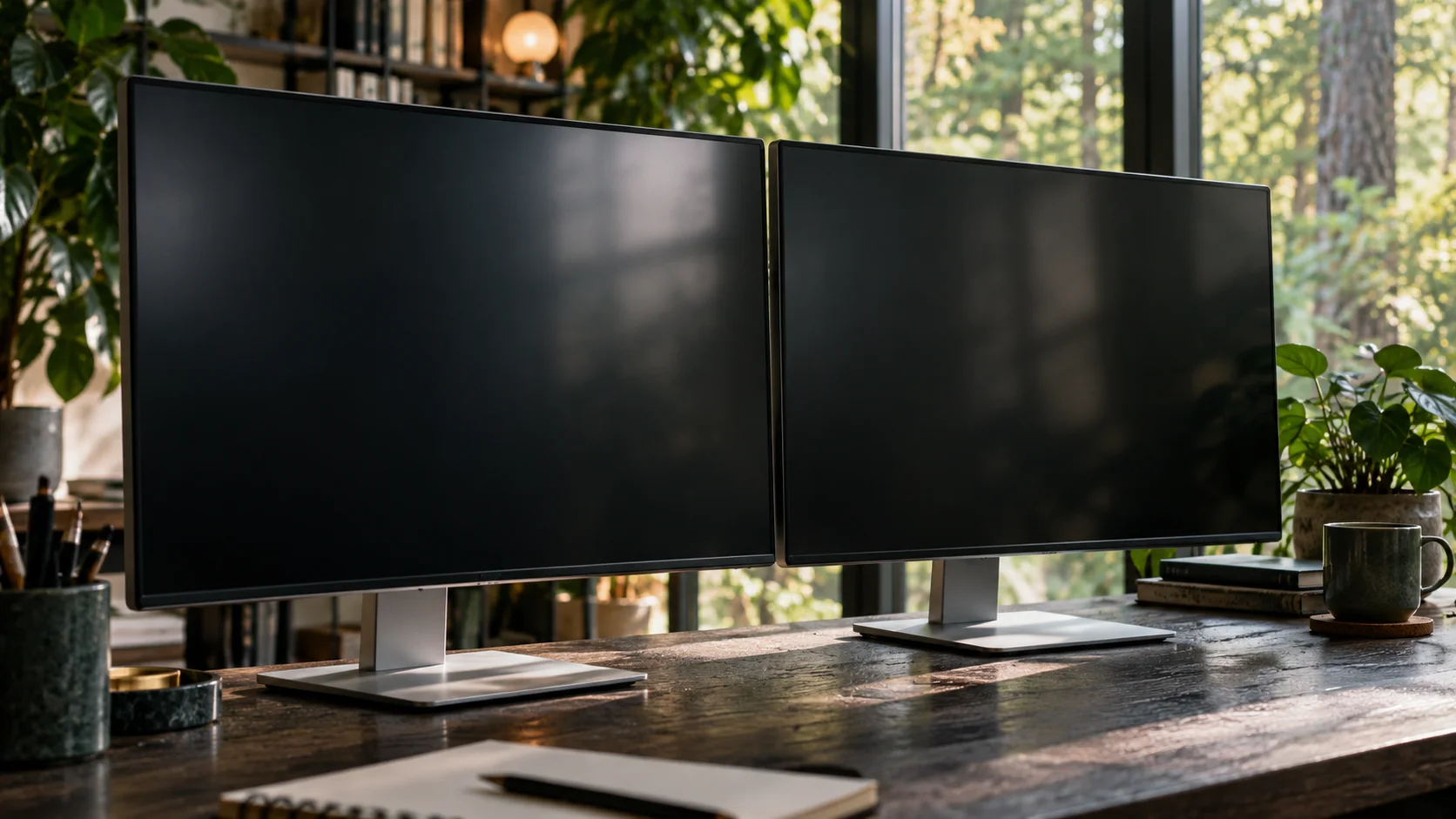
Two monitors can give you a larger working surface without making the work easier to follow. If every window is allowed to land anywhere, you now have two places to search. A clear division of responsibilities can be more useful than an elaborate permanent arrangement.
Start with the question you answer on each screen. One might hold the thing you are changing; the other might hold the evidence you need to change it.
Quick answer
Use an extended desktop, assign a purpose to each display, and move windows according to the task. Keep the main task usable on the laptop alone so disconnecting a monitor does not require redesigning your whole workflow.
Check that you have an extended desktop
Mirroring shows the same desktop on another display; extending gives you additional desktop area. Apple explains how to choose the display’s “Use as” setting in System Settings → Displays. Check this first if dragging a window seems to reveal the same content on both screens.
Do not change several display settings while also learning a window manager. Confirm that your normal pointer movement and preferred scaling make sense before configuring a layout. If text is uncomfortable, solve that reading problem before adding more windows to the screen.
For a laptop at a desk, decide which display is the main reading surface. A larger panel is not automatically the better choice for every task; its placement, text size, and the content you need all matter.
Give screens roles instead of assigning every app a permanent home
A useful starting arrangement is active work on one screen and reference material on the other. The roles describe what you do, rather than insisting that a particular app must always live in a particular location. Your browser may be the active work surface during a review and a reference during writing.
For a design task, put the canvas where you can inspect it comfortably and keep the brief nearby. For financial work, separate the sheet you edit from the evidence you consult. If both windows demand close attention at the same time, bring them onto the same screen for that phase.
Keep communication off the main reading surface when it competes with the task. A second display can make a distraction continuously visible just as easily as it can make a reference continuously visible.
Move a window deliberately and verify focus
When you need a window elsewhere, choose the actual window first. Two browser windows can look similar while containing entirely different task contexts. Confirm its title or content, use your manager’s display movement control if available, then check where typing will land.
In Glidro, review the installed control reference before assigning display commands. Do not assume “next display” means the same thing as “move this window to the next display”; focusing a screen and sending a window are distinct operations. A reliable workflow names the action precisely.
Avoid creating a second copy merely to avoid moving the first. Duplicate documents and dashboards create uncertainty about which one you are editing. Open a second window when you need a second view, not as a substitute for understanding the first one’s location.
Use an independent strip as a working boundary
Glidro’s product model keeps a horizontal strip per display. Treat each strip as the immediate neighborhood of the work on that screen. Put the windows you alternate between next to each other, rather than using the external display as an unstructured overflow pile.
Keep the count modest while learning. A laptop strip with a draft and notes, plus an external strip with a source and preview, is easier to reason about than a dozen loosely related windows. Once the boundaries feel natural, add only the windows that earn their place.
If you enable independent monitor scrolling, follow Glidro’s own setup guidance. Keep display routing and physical pointer behavior in mind when testing; do not assume another window manager uses the same display isolation approach.
Plan an undocked version before you need it
At the end of a safe, saved session, consider what should remain useful on the laptop alone. Identify the single main window and the two references that matter most. Their order should still make sense when you can see only one or two at a time.
After a display disconnect, inspect the result before issuing several focus or movement commands. If a window is hard to find, use normal macOS window navigation to locate it and confirm the current display state. Reconnect or pause the manager if necessary, then diagnose with a small set of windows.
Judge the setup in both contexts: the desk where you have room and the place where you only have the laptop. A useful two-monitor workflow should improve desk work without making your portable setup impossible to understand.
Common questions
Should I mirror or extend my display?
Extend for extra working area. Mirror when you need both screens to show the same desktop, such as some presentation situations.
Should each app stay on one screen?
Only when that supports your tasks. Assigning roles such as active work and reference can adapt better when the same app serves different purposes.